
On most WordPress sites, images are the heaviest part of the page. On WooCommerce stores and photo-heavy blogs, a single product gallery or hero banner can outweigh all the HTML, CSS and JavaScript combined.
When a mobile visitor opens your site over a cellular connection, a multi-megabyte JPEG or PNG hero banner is often the element that decides Largest Contentful Paint (LCP), one of Google's Core Web Vitals.
Slow pages lose visitors, and LCP is one of the signals Google uses to judge page experience.
The Format Dilemma: JPEG vs WebP vs AVIF
For years, WebP was the go-to successor to JPEG and PNG. According to Google, lossy WebP images are 25–34% smaller than comparable JPEGs at the same visual quality, and lossless WebP is 26% smaller than PNG.
AVIF (AV1 Image File Format) goes further:
- Usually smaller than WebP at the same visual quality, especially on photos.
- Better at keeping smooth gradients, sharp text and high-contrast edges.
- Supports 10-bit and 12-bit color and HDR.
| Image Format | File Size | Browser Support | Visual Quality |
|---|---|---|---|
| JPEG | Largest | Every browser | Visible artifacts at high compression |
| WebP | Smaller than JPEG | Almost all current browsers | High, slight softening on fine lines |
| AVIF | Usually the smallest | Recent Chrome, Edge, Firefox and Safari | Very sharp, accurate color |
Savings depend on the image: test your own files before relying on any single number.
The Trap: Why Single-Format Delivery Breaks Browsers
If AVIF is so good, why not switch every image to AVIF?
Because not every browser can show it. Recent versions of Chrome, Edge, Firefox and Safari decode AVIF, but older phones, embedded webviews, some in-app browsers and older operating systems cannot.
If you simply swap .jpg for .avif, visitors on those devices see broken image boxes.
The Solution: HTML5 Dual Picture Tag Delivery
The standards-based fix is dual format delivery with the HTML5 <picture> element and ordered fallbacks:
<picture> <!-- 1. Browsers that support AVIF download the AVIF file --> <source type="image/avif" srcset="hero.avif"> <!-- 2. Browsers without AVIF fall back to WebP --> <source type="image/webp" srcset="hero.webp"> <!-- 3. Everything else renders the original JPEG --> <img src="hero.jpg" alt="Optimized Hero Image" width="1200" height="630" loading="lazy"></picture>With this markup, each browser downloads the smallest file it can display: AVIF where supported, WebP next, and the original JPEG as the last resort. There is no JavaScript involved, and the width and height attributes prevent layout shifts.
The Cloud Quota Waste Problem (And How SmallPict Solves It)
Many cloud-based image optimizer plugins send every thumbnail size to the cloud.
When you upload one image, WordPress generates 6 to 12 extra sizes (thumbnail, medium, large, woocommerce_catalog and so on).
If a plugin sends all 12 sizes to a cloud API for both AVIF and WebP, one photo upload costs 24 cloud conversions, and your monthly quota drains quickly.
How SmallPict Dispatches Images
SmallPict works out an upfront dispatch plan for each upload:
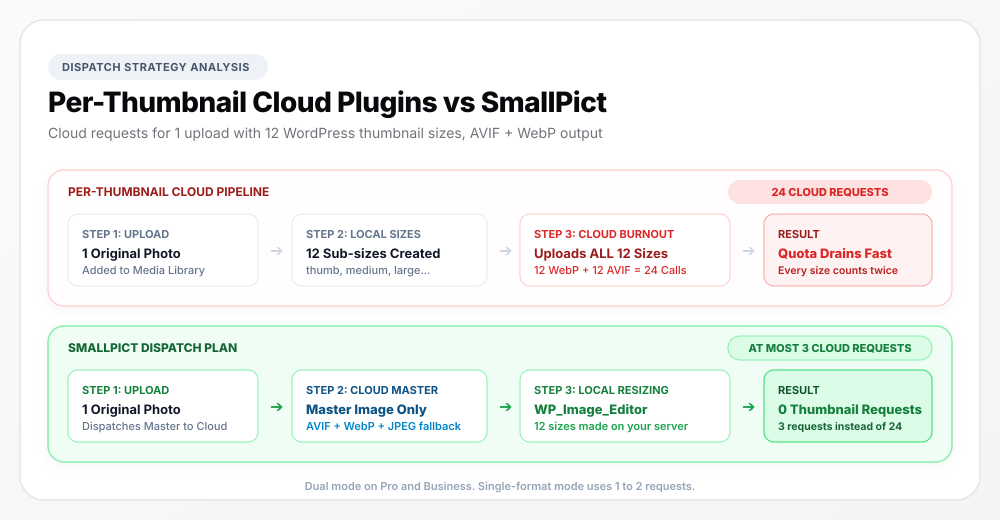
- Only the master image goes to the cloud: SmallPict sends the original, full-size image to our cloud API for next-gen conversion.
- Thumbnails are made on your server: once the optimized files come back, SmallPict uses WordPress's own image editor (
WP_Image_Editor, with GD or Imagick) to create every thumbnail size locally, without extra cloud requests. - A fixed number of requests per upload: in dual mode, one upload uses at most 3 cloud requests (AVIF, WebP and an optimized JPEG fallback), no matter how many thumbnail sizes your theme registers. Single-format mode uses 1 or 2.
How to Measure the Gain on Your Own Site
Results depend on your images, theme and hosting, so measure on your own pages:
- Run PageSpeed Insights on an image-heavy page and note the LCP and total image size.
- Turn on dual AVIF + WebP in SmallPict and bulk-optimize your media library.
- Open the page in Chrome DevTools (Network tab, filter Img) and check that images load as
image/avif. - Run PageSpeed Insights again on the same page and compare.
How to Get Started
You don't need to rebuild your theme or edit template files. SmallPict filters WordPress image output on the fly (wp_content_img_tag, the_content, wp_get_attachment_image) and adds <picture> tags with width and height kept, so nothing shifts.
Dual AVIF + WebP delivery is available on the Pro and Business plans. Starter serves one next-gen format of your choice (WebP or AVIF), and Free serves WebP.
Install the free SmallPict plugin from the WordPress repository, or see Pricing & Plans to compare plans.